
No products in the cart.
A brand-new MikroTik router lives at 192.168.88.1, and the username is admin. The password is the part that trips people up: older models have no password at all, while newer ones ship with a unique password printed on the label. If you have typed admin with a blank password and it keeps saying invalid, that is almost always why. This guide walks through the first login the way we do it on the counter, plus what to do when it still will not let you in.
The short answer
- Address: 192.168.88.1 — in a browser, or in WinBox.
- Username: admin
- Password: blank on older models; on newer models it is printed on the sticker on the device, the box and the quick-guide sheet.
- Locked out of a used unit? Reset it with the button on the back (steps below). It goes back to the factory login.
Step 1: Connect to the router
- Plug your laptop into port 2 or higherOn home and office routers like the hEX and hAP, port 1 is set as the internet port in the factory setup. Use any other port.
- Let the laptop get an addressThe router hands out addresses in the 192.168.88.x range. Leave your network card on automatic.
- Open the routerType http://192.168.88.1 in a browser for WebFig, or open WinBox. WinBox 4 runs on Windows, macOS and Linux.
- Log in as adminThen the password — blank, or the one from the label.
WinBox trick: if you cannot reach 192.168.88.1, open WinBox and look at the Neighbors tab. Click the router’s MAC address instead of its IP. It connects even when the IP settings are wrong, which is a lifesaver on a unit someone else configured.
Step 2: Find the right password
MikroTik moved newer models to a unique factory password for security. You will find it in three places:
On the deviceSerial number sticker
Usually underneath or on the back, printed small.
On the boxSame sticker, larger
Easier to read than the one on the unit.
Quick-guide sheetInside the packaging
Keep this paper with the router’s paperwork.
Type it carefully: the print is tiny, and characters like 0 and O, or 1, l and I, are easy to misread. If you lost the box and the sticker is unreadable, MikroTik’s own advice is to ask the distributor that supplied the unit. If yours came from us, send the serial number and your invoice details on WhatsApp and we will check.
Step 3: Reset a router you cannot get into
A second-hand router, or one an old installer set up, will have someone else’s password. A configuration reset brings back the factory login. It erases the settings, so only do it if you are ready to set the router up again.
- Unplug the powerLeave the network cables out too.
- Press and hold the reset buttonUse a pin or paperclip if it is recessed.
- Plug the power back in while still holdingWatch the USR or ACT light.
- Release as soon as the light starts flashingUsually around five seconds. Then wait a minute for the router to boot.
Do not keep holding. If you hold the button well past the flashing stage, the router switches into other modes used by installers (for central Wi-Fi management or a full reinstall). If that happens, simply unplug and repeat, releasing at the first flash.
Your first ten minutes after logging in
Most problems we are asked to fix on MikroTik routers come from skipping these. They take ten minutes.
- Run Quick SetIt sets the internet connection, Wi-Fi name and local network in one screen.
- Set a strong admin passwordOr better, create your own user and disable the default admin.
- Update RouterOSSystem, then Packages, then Check for Updates. Install and let it reboot.
- Update the firmwareSystem, then RouterBOARD, then Upgrade, then reboot once more. Many people skip this second step.
- Close what you do not useUnder IP, then Services, disable unused services and allow WinBox only from your local network.
Old, never-updated RouterOS is the main reason MikroTik routers end up hijacked. A router bought today and kept updated is a very different story — see our RouterOS explainer for what the system can do once you are in.
Popular MikroTik routers we set up most often
Wired starter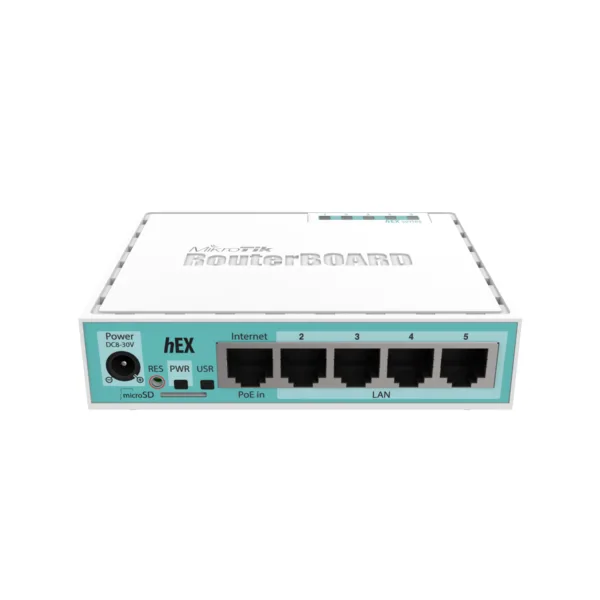 MikroTik hEX RB750Gr3 Gigabit Router5x 1GbE Ports, 880MHz Dual-Core, 256MB RAM, RouterOS L4AED 216.00In stock in DubaiView product Wired with SFP
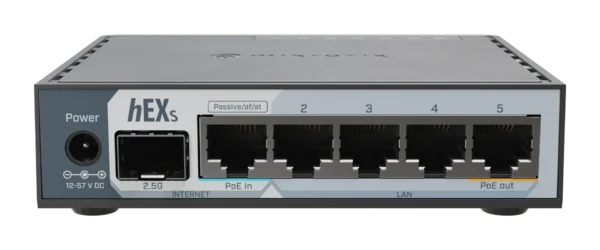 MikroTik hEX S (2025) E60iUGS5x Gigabit Router with 2.5G SFP, RouterOS v7 Original price was: AED 276.00.AED 265.00Current price is: AED 265.00.In stock in DubaiView product Wi-Fi 6 home
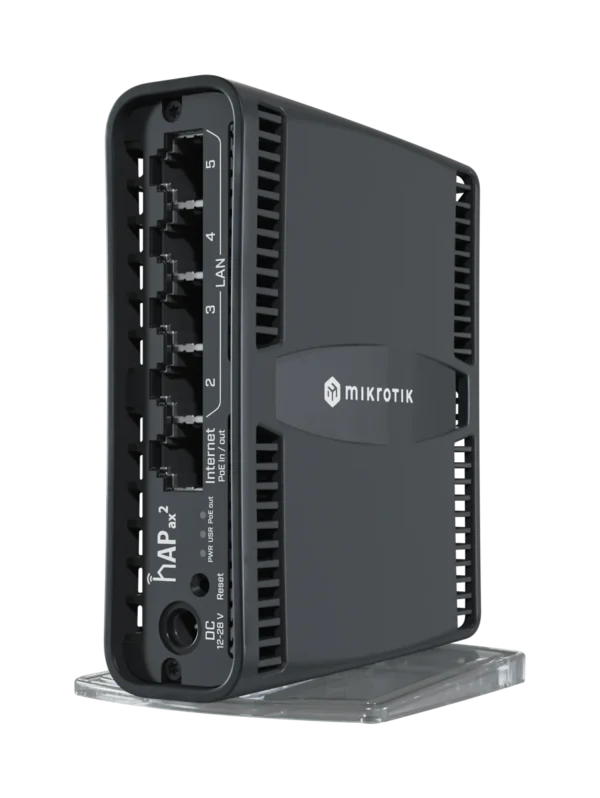 MikroTik hAP ax² C52iG-5HaxD2HaxD-TCDual-Band Wi-Fi 6 Router, 5x Gigabit, PoE-in/outAED 339.00In stock in DubaiView product Small office rack
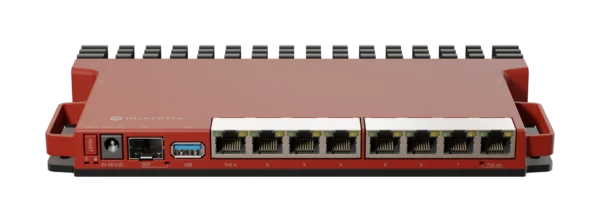 MikroTik L009UiGS-RM8x Gigabit Rackmount Router, 2.5G SFP, RouterOS v7AED 403.00In stock in DubaiView product
MikroTik hEX RB750Gr3 Gigabit Router5x 1GbE Ports, 880MHz Dual-Core, 256MB RAM, RouterOS L4AED 216.00In stock in DubaiView product Wired with SFPMikroTik hEX S (2025) E60iUGS5x Gigabit Router with 2.5G SFP, RouterOS v7 Original price was: AED 276.00.AED 265.00Current price is: AED 265.00.In stock in DubaiView product Wi-Fi 6 homeMikroTik hAP ax² C52iG-5HaxD2HaxD-TCDual-Band Wi-Fi 6 Router, 5x Gigabit, PoE-in/outAED 339.00In stock in DubaiView product Small office rackMikroTik L009UiGS-RM8x Gigabit Rackmount Router, 2.5G SFP, RouterOS v7AED 403.00In stock in DubaiView product Frequently asked questions
What is the default MikroTik password?
The username is admin. Older MikroTik models have no password, so you leave the field blank. Newer models ship with a unique password printed on the serial number sticker on the device, on the box and on the quick-guide sheet.
What is the default MikroTik IP address?
192.168.88.1. Connect to any port except port 1 on home and office routers, then open that address in a browser or use WinBox.
How do I log in to a MikroTik router?
Connect a laptop to port 2 or higher, open http://192.168.88.1 or WinBox, and log in as admin with a blank password or the password from the device label. If the IP does not respond, connect by MAC address from WinBox’s Neighbors tab.
How do I update my MikroTik router?
In WinBox or WebFig go to System, Packages, Check for Updates, then download and install. After it reboots, go to System, RouterBOARD, click Upgrade and reboot again to update the firmware.
Is RouterOS based on Linux?
Yes. RouterOS is MikroTik’s own operating system built on the Linux kernel, with its own interface and tools. You manage it through WinBox, WebFig, the command line or MikroTik’s mobile app.
I reset the router and admin with no password still does not work.
That router uses a factory password from its label, and the reset returns it to that password, not to blank. Use the password printed on the sticker.
Still locked out?
Send us the model and serial number. We will help you get back in.